Spotlight › FTP Server
An FTP server on a 1981 IBM PC
Every network program os8088 had reached out to something else. This one waits to be asked. Open its window, and a laptop across the room can copy files onto the machine while it is running.
- clients
- one at a time
- measured on a 5150
- 30 KB/s
- encryption
- none, by nature
What an FTP server is
And why anybody would want one on a machine from 1981.
The protocol
FTP stands for File Transfer Protocol. It is a set of rules for copying files between two computers over a network, and it dates from 1971. It is older than the web, older than this computer, and still supported nearly everywhere: every current operating system has a program that speaks it, and so do most file managers.
One side is the server. It sits there with a disk and waits. The other side is the client: it connects, signs in, asks what files there are, and copies them in either direction.
Everything before this reached outwards
os8088 has had a network for a while. There is a web browser and there is a Telnet program for logging in to another machine. Both of them start the conversation. They pick a computer somewhere, connect to it, and ask it for something.
This is the first program on the machine that goes the other way. It does not connect to anything. It listens. The connection arrives, the other computer asks the questions, and every answer comes off this machine's own floppy disks.
What that changes
Getting a file onto a real IBM PC of this age is a chore. You make a floppy disk image on a modern computer, find a machine that can still write a floppy, write it, carry the disk across the room, and reboot the PC. Every time.
Now you open a window on the PC and drag the file over from a laptop. The PC keeps running while you do it.
See it running
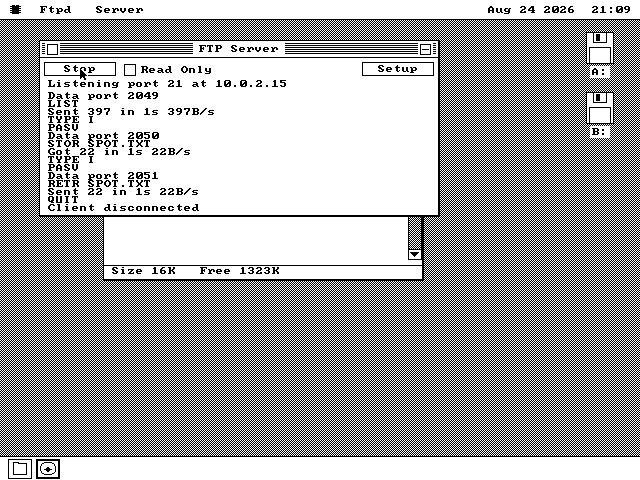
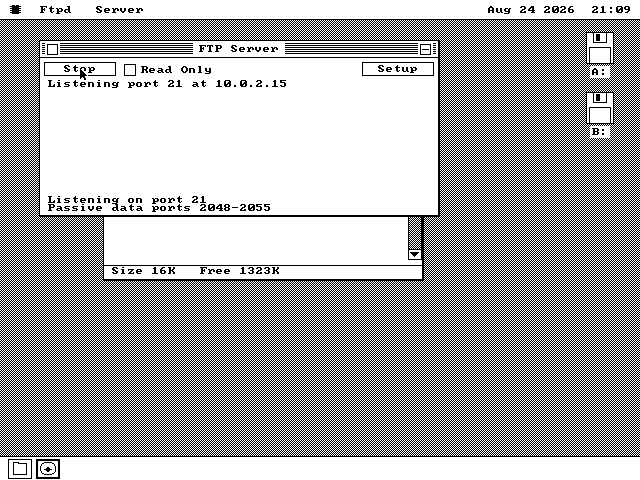
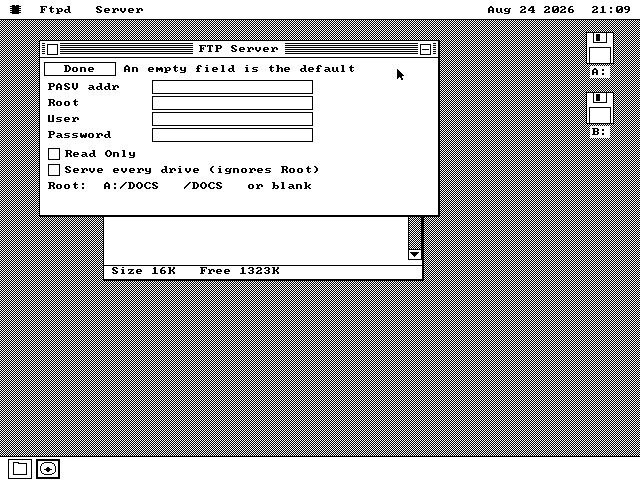
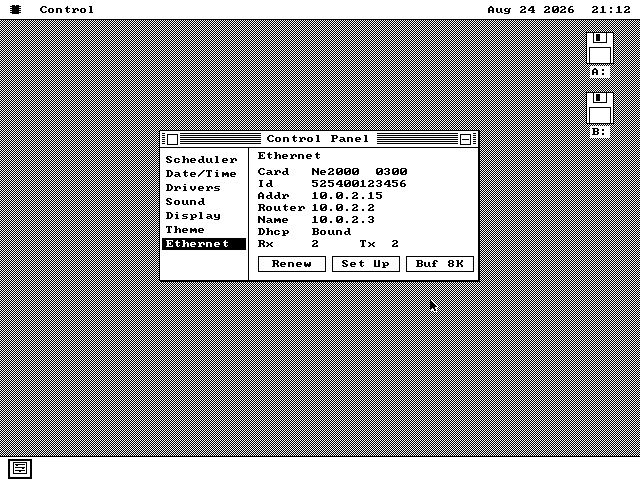
Every picture is a screendump of the real thing, from a real session.
How it works
Four things worth knowing before you point a client at it.
The window is the on switch
The server runs while its window is open, and stops when you close it. There is no background service, nothing that starts at boot, and nothing left listening after you have finished with it.
That is deliberate. On a machine with no way to see what is running except the screen, "it is on if you can see it" is the honest arrangement.
It serves the disk it came from
Launch it off the software floppy and it serves the software floppy. There is no way for the client to wander into the other drive.
If you do want every drive, there is a whole-machine mode that shows each one as a folder at the top level. It is a setting you turn on, not the default.
Eight characters, a dot, three more
Floppy disks of this era hold names in the shape README.TXT. A longer name
sent by a client is shortened to fit rather than rejected, and the shortened name is what
the listing shows -- so what you see is what you can ask for.
Transfers are binary, which means the bytes arrive exactly as they were stored. Nothing is translated on the way.
It says it is a UNIX machine
When a client asks what kind of system it is talking to, this one answers UNIX. That is not a claim about the computer. It is a claim about the shape of its directory listings.
Clients use that answer to pick how to read a listing, and the UNIX shape is the one every client understands. Answering honestly would leave some of them unable to show a folder at all.
Getting it fast
7 KB a second to 30 KB a second, measured on the real machine.
The first working version moved about 7 KB a second on a real IBM 5150 -- an 8088 running at 4.77 MHz, which is the machine all of this is aimed at. By the end of one working session it moved 30 KB. The same upload went from 43 seconds to 10.
Three changes did most of it, and none of them were in the FTP program itself.
- Copying bytes with the processor's own block-move instruction instead of a hand-written loop. The loop cost about 83 processor cycles a byte; the instruction costs about 17. That alone took 8.7 seconds off a 297 KB transfer.
- Rewriting the routine that takes bytes off the network card. It was reading the same value out of memory twice for every single byte, and saving and restoring a register around every store. It accounted for 71% of the cost of every packet that arrived.
- Clearing out finished connections properly. The protocol uses one connection for commands and another for each transfer, and this machine has four to hand out. A finished one was being held for six seconds, so any transfer that followed another one began with a six-second dead gap. That went to less than half a second.
A fourth change is worth mentioning because of what it teaches: making the buffers bigger, which everybody expects to help, measurably bought nothing. The moment the buffer stopped being the limit, the cost of handling each byte became the limit instead. Both facts had to be measured on the real machine to be believed.
What it will not do
The first item is the one to read.
- Nothing is encrypted. FTP has no encryption -- it never did -- so the password and the files cross the network in the clear. This machine could not encrypt them anyway: the arithmetic behind modern encryption takes minutes on a 4.77 MHz processor. Use this on a network you trust, and do not put a password on it that you use anywhere else.
- One client at a time, one transfer at a time. That is what the memory and the processor time on this machine will carry.
- It will not delete a folder that still has anything in it. The standard says it should refuse, and a client asking to remove an empty folder would not expect its contents to go with it.
- Renaming works within one folder. Moving a file to a different folder by renaming it fails cleanly rather than putting it somewhere unexpected.
- A stalled transfer does not keep its connection. A timer notices and closes it, so a client that vanished mid-transfer does not leave the machine stuck.
Use it yourself
You need a network card in the machine, real or emulated.
-
Give the machine a network card. On real hardware that is an NE1000 or NE2000 card. In QEMU, add this to the command line:
-netdev user,id=n0 \ -device ne2k_isa,netdev=n0,iobase=0x300,irq=3 -
Turn the network on. Open the Control Panel, go to its Drivers page and tick the Ethernet driver, then look at the Ethernet page. It should show the card it found and an address for the machine. Write that address down -- it is the one the client needs.
-
Open the disk you want to share and launch
FTPD.O88from it. Whichever disk you start it from is the disk it serves. -
Set a user name and a password on the Setup page. Tick Read Only if the other computer should be allowed to take files but not change anything. Then press Start.
-
Connect from the other computer. Any FTP client will do -- the
ftpcommand, a file manager, or a dedicated program. Point it at the address from step 2 and sign in with the name and password you set. -
Copy files in either direction, one at a time, and watch each command appear in the log in the window. Close the window when you are finished, which stops the server.
A note on the emulator. QEMU's default networking lets the machine reach out but does not let anything reach in, so a client on your desktop cannot connect to the guest without forwarding a port to it. On real hardware on a real network there is nothing to arrange -- the machine simply has an address, and you connect to it.