Spotlight › Two monitors
Two monitors, one desktop
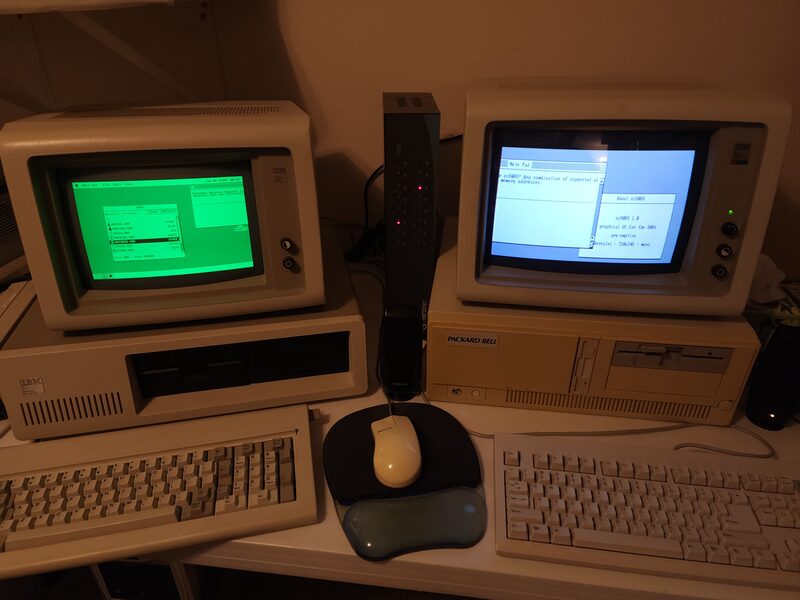
I put two display cards in an original IBM PC, connected a monitor to each one, and got os8088 to use them together. You can drag a window from one screen to the other, or leave it halfway between them and watch the two cards draw it together.
Why two monitors?
It was a handy setup long before anyone called it a multi-monitor setup.
An old PC trick
In the early 1980s, a green monochrome monitor was great for sharp, readable text. A colour monitor was better for games and pictures. If you wanted both, you could put both kinds of display card in the same PC and connect a monitor to each one.
The cards did not get in each other's way because they used different parts of the PC's memory. The catch was that most software made you choose one screen or the other. The second one usually sat there dark until a program asked for it.
Now os8088 can use both
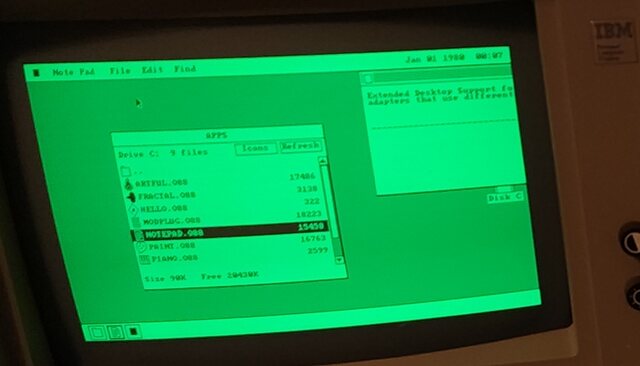
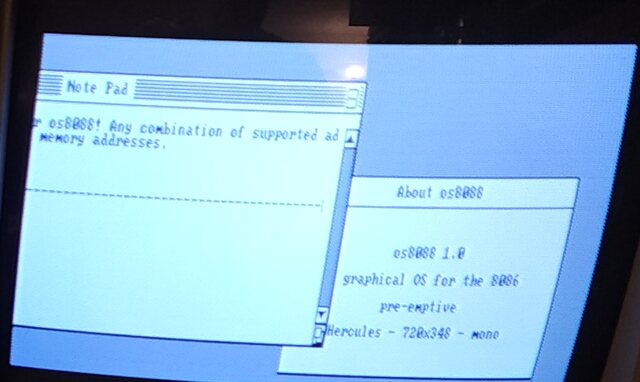
os8088 joins the screens into one larger desktop. Move a window past the edge of the main monitor and it carries on across the second one. Leave it over the gap and each monitor shows its half.
I have mine side by side, but you can also tell os8088 that the second monitor is below the first one if that is how they are sitting on your desk.
A closer look
These are the two halves of the same Note Pad window.
What it is like to use
Mostly, it just feels like there is more desk.
Drag them wherever you want
A window can sit on the green screen, the colour screen, or halfway across both. You do not have to send it to the other monitor with a special command. Just drag it there.
The two monitors have different resolutions, so their edges do not line up perfectly. That is why the colour desktop in the photo is shorter than the green one.
The usual things stay put
The menu bar, dock and drive icons stay on the main monitor. That keeps them easy to find instead of stretching them awkwardly across two very different screens.
A full-screen program fills one monitor. The other monitor keeps showing the desktop.
The pointer stays visible
Push the arrow through the edge and it appears whole on the other monitor instead of being cut in half between them.
Because one screen is taller than the other, there is also a spot beside the shorter screen where there is no monitor at all. The pointer stops at that edge instead of wandering somewhere you cannot see it.
You switch it on yourself
os8088 can tell when a second display card is fitted, but it cannot tell whether a monitor is actually plugged into it. So it starts with one screen, and lets you turn on the second in the Control Panel.
Otherwise you could lose a window -- or even the pointer -- on a screen that is not really there.
A few catches
Before you start collecting old monitors:
- You need one Hercules card and one CGA card. A VGA card pretending to be CGA does not count; there has to be a real second display card in the machine.
- Two screens is the limit.
- The second screen does not get its own menu bar or dock. You choose which screen is the main one, and that screen goes on the left or on top.
- Full-screen programs use one monitor. The other one stays on the desktop.
Try it yourself
You can use real hardware, or recreate the same setup in 86Box.
-
Start with both display cards. On a real PC, install a Hercules card and a CGA card, then connect a monitor to each. If you do not have the hardware handy, the os8088 source includes an 86Box setup that opens a window for each monitor:
make xt-multimon -
Open the Control Panel from the menu under the chip logo, and choose Display.
-
Set Desktop to Extend, then choose whether the second screen is on the right or below. If os8088 has them the wrong way round, change the main display on the same page.
You only have to do this once. os8088 remembers the setting and uses both monitors the next time it starts.