Spotlight › Control Panel
The wide Control Panel
On a VGA or VESA screen, the Control Panel now opens at 616 by 408 pixels instead of 320 by 151. The extra room holds a driver library, every screen mode the graphics card offers with a way to try one safely, and the themes as pictures.
- Window on VGA
- 616 × 408
- Memory while open
- About 29KB
- Added to the kernel
- 16 bytes
01 / What it is
What it is
The Control Panel is where os8088 keeps its settings: the clock, the keyboard layout, the floppy drives, the drivers, the display, the sound card, the colours and the Dock. It was designed to fit a CGA screen, which is 200 pixels tall, so it was 320 by 151 pixels and each page showed a few lines at a time.
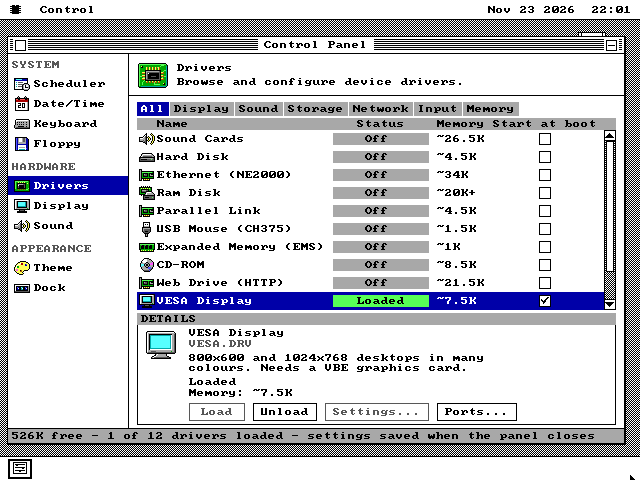
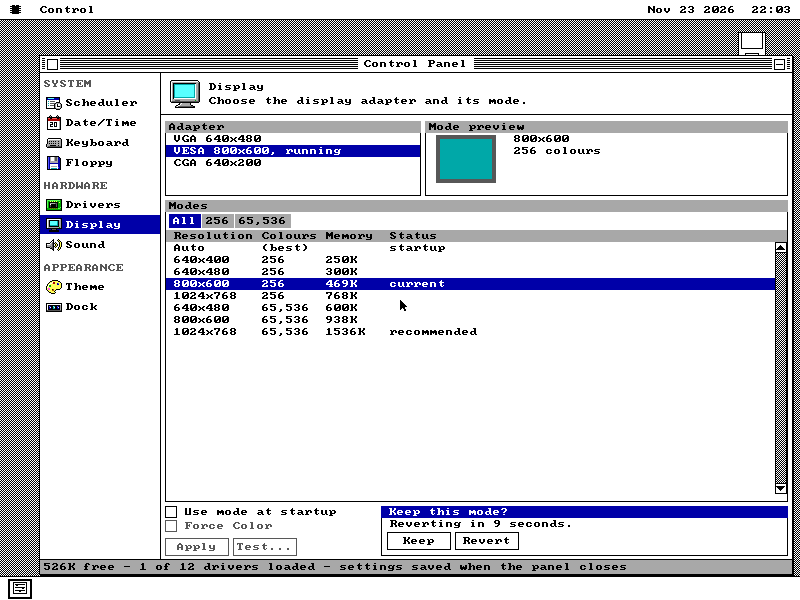
A VGA screen is 640 by 480, and a VESA card, the standard later graphics cards use for larger screens, goes to 1024 by 768 and beyond. On those screens the Control Panel now opens at 616 by 408, or 760 by 520 on a screen of 800 by 600 and up. The pages are grouped under System, Hardware and Appearance, each with an icon. Each page has a heading saying what it is for, and a line along the bottom shows the free memory and how many drivers are loaded.
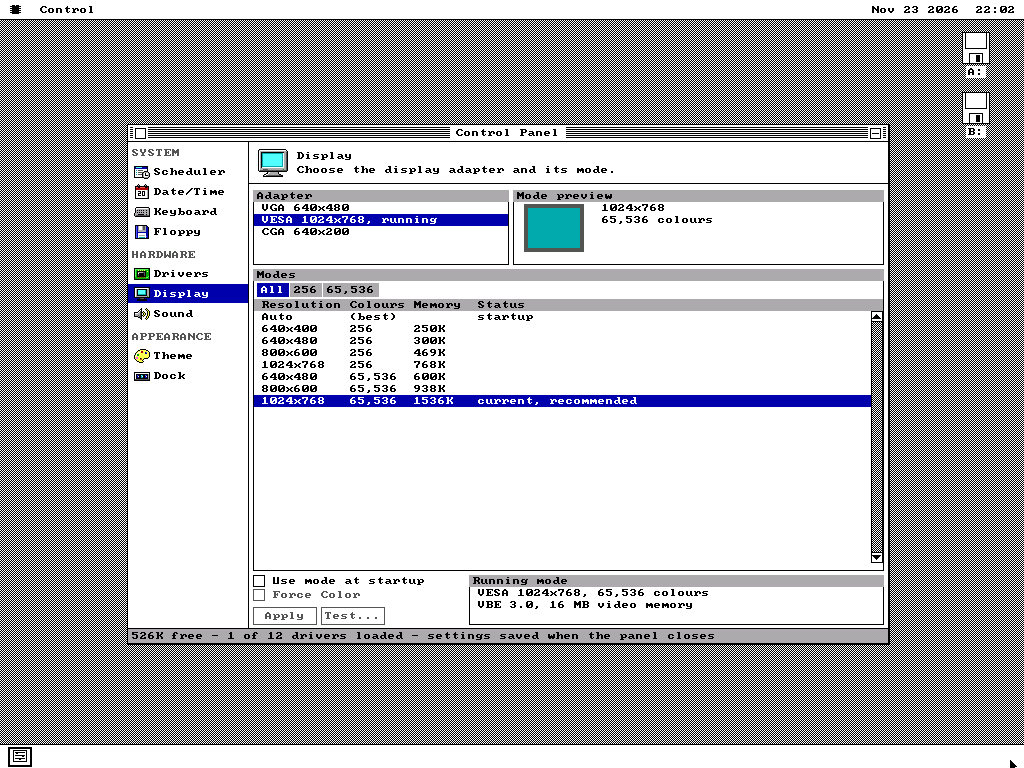
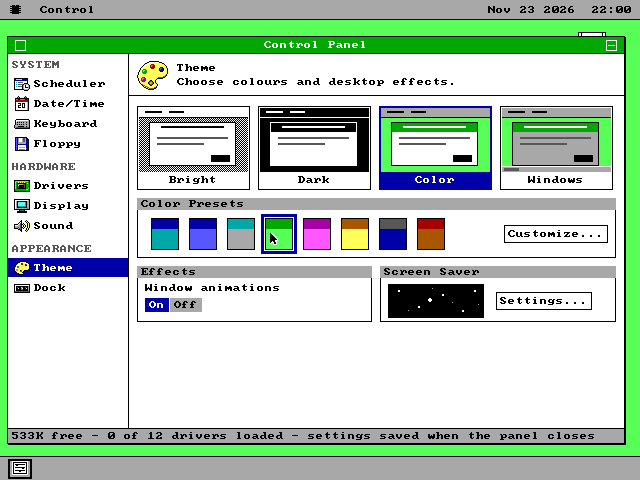
Three pages are new. The Drivers page is a library: it sorts the drivers into Display, Sound, Storage, Network, Input and Memory, and for each one says what it does, how much memory it takes, whether it is loaded and whether it starts with the machine. The Display page lists every screen mode the VESA card reports, with its colours and the video memory it needs, and Test tries one for 15 seconds. The Theme page shows the four themes and eight colour presets as small pictures. The other pages are the ones the compact panel has, shown in the larger frame.
02 / On the screen
On the screen
03 / How it works
How it works
The Control Panel is not part of the resident system. It is a file on the system disk, read into memory when you open the panel and freed when you close it, so the rest of the time it takes no memory at all. The wide layout works the same way, as a second file read beside the first. Everything the panel can change, it changes through the same code the compact layout uses, so the two layouts cannot disagree about a setting.
The wide layout and its data together take about 29KB while the panel is open: 13.5KB for the layout and 15.5KB for its icons and the driver descriptions. All of it is given back when you close the panel. The kernel file grew by 16 bytes.
The driver descriptions, categories and icons are a data file, not code. A new driver gets its line in the library by adding an entry to that file. The Display page asks the VESA driver for the card's modes when it opens, so a card with modes nobody planned for still lists them, with how much video memory each needs.
The icons began as images generated from written prompts, then were converted to the screen's 16 colours by a program on the build machine, with a mask, so they also draw correctly in black and white.
04 / Where it does not appear
Where it does not appear
CGA, EGA and Hercules keep the compact panel. Their screens are 200, 350 and 348 pixels tall, and the wide panel needs a screen of at least 640 by 480 with 408 rows free.
So do the small systems. The 128KB system and the 360KB system disk leave the wide layout out, to keep the room for programs.
A Dock at the side can stop it. When the Dock stands at the left or right edge and leaves too little width, the panel opens compact. Anything that stops the wide layout from loading, such as a missing file or too little free memory, opens the compact panel instead, without a message.
05 / Open it
Open the wide Control Panel
Boot a 1.44MB, 1.2MB or 720KB system disk, the 286 system disk or the live USB or CD, on a machine with a VGA or VESA card.
Click the menu at the left end of the menu bar and choose Control Panel. The system disk must be in drive A.
For the larger VESA screens, open Drivers, select VESA Display and press Load, then restart. The Display page then lists the card's modes.
Close the panel to save your settings.