Spotlight › Hibernate
Stop the machine, and come back to it
Pick Hibernate and os8088 writes everything in its memory to a file on the hard disk, then stops. Switch the machine off, come back tomorrow, and it offers to put you back exactly where you were -- the same windows in the same places, the same programs still running, the same clipboard.
- saves
- all 640KB of memory
- always in the kernel
- 259 bytes
- disk operations
- about 80 each way
What hibernating is
An old idea, and a useful one on a machine this slow to start.
Sleeping and hibernating are not the same thing
A laptop that sleeps keeps its memory powered. The contents are still there because electricity is still keeping them there, which is why a sleeping laptop with a flat battery wakes up having forgotten everything.
Hibernating does the opposite. It copies the memory onto a disk, where it stays without power, and then the machine can be switched off completely. Nothing is being kept alive. The session is a file.
Why it is worth having here
os8088 runs on an IBM PC from 1981. Starting one is not quick: the machine counts its own memory, the operating system loads off a floppy disk or a hard disk one sector at a time, and then you open the programs you were using and put the windows back where you like them. That is minutes, every time.
Hibernating skips all of it. The next start reads the file back and the machine is where you left it, down to what was on the clipboard.
What you actually do
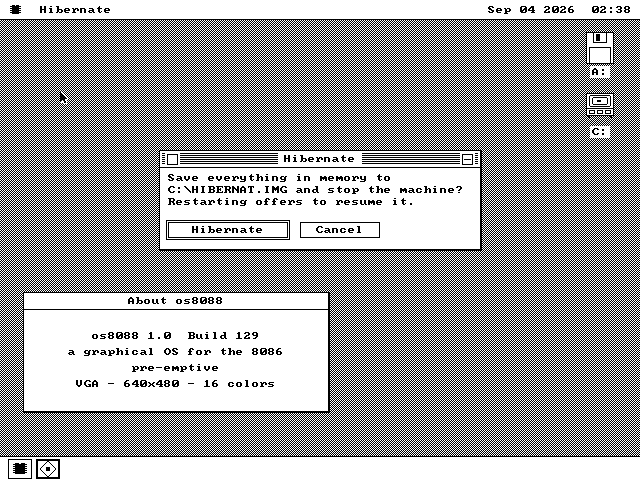
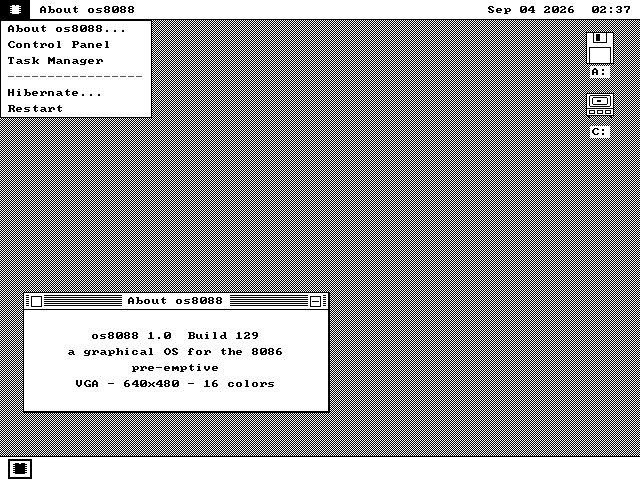
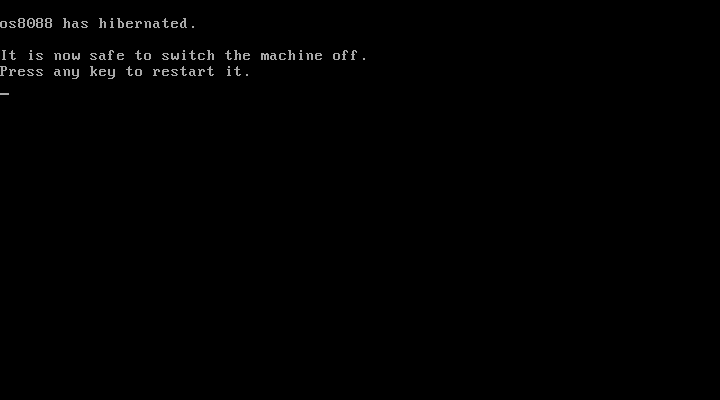
Hibernate is an item in the System menu, under the chip in the top-left corner of the screen. Pick it, and a window asks once whether you mean it. Press the Hibernate button and the screen goes to plain text: os8088 has hibernated. It is now safe to switch the machine off.
From there you can pull the plug. Or press a key, which restarts the machine and takes you to the question on the next start.
Watch it happen
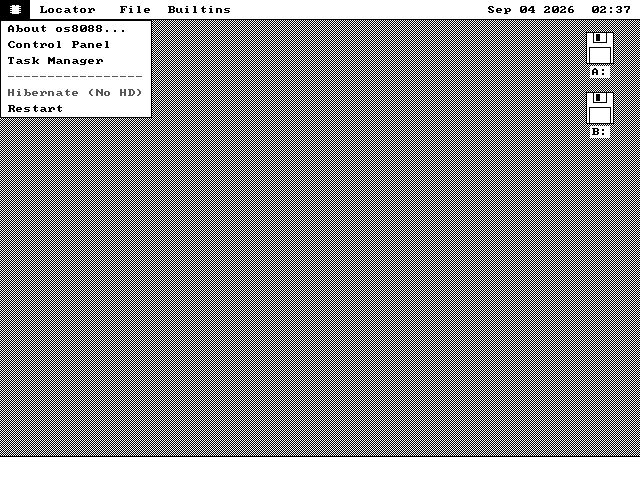
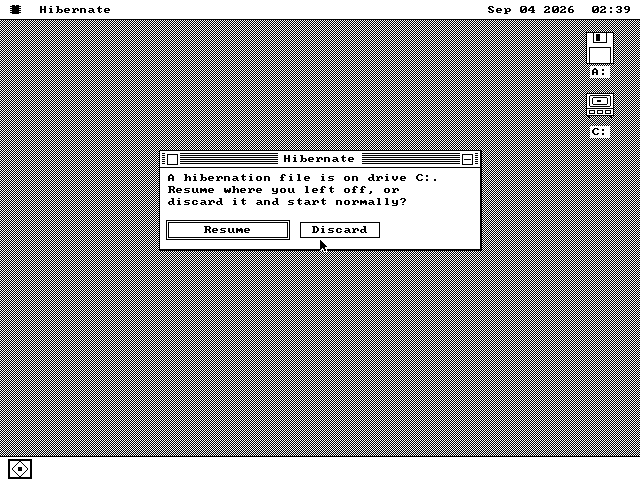
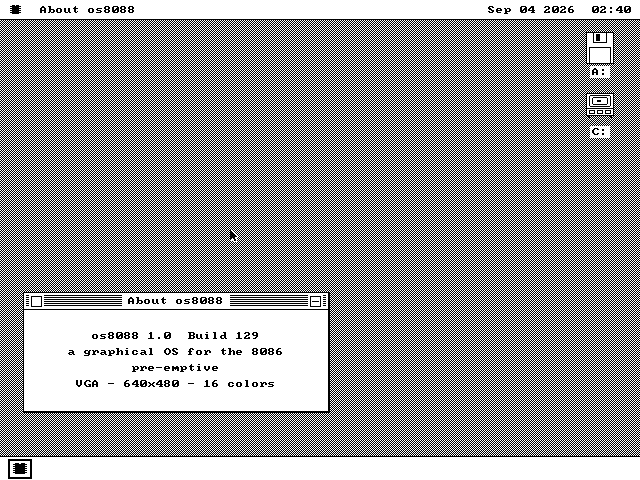
Every picture below is a real machine, driven through the whole cycle in order.
How it works
Four ideas, and the last one is what makes the other three cheap.
The memory, and nothing else
The file is a straight copy of the machine's memory from the first byte to the last. There is no header on it and nothing is compressed. Position 100 in the file is address 100 in memory.
That is what makes coming back cheap. Nothing has to be unpacked or worked out. The restore is a list of places on the disk and where each one goes.
Anything that owns a device is let go first
A sound card, a network card and a printer link all hold settings inside the hardware itself, and that state does not survive the power going off. Saving it would be saving a lie.
So each of those is disconnected before the file is written, and started again from scratch after the restore -- the same way it would be started on an ordinary boot.
The one thing not read from the file
Everything else comes back exactly as it was, which for the clock would be wrong. A session saved on Tuesday would wake up on Tuesday.
The time is taken from the start that just happened instead. It is the only value the restore deliberately overwrites, and it is why the clock in the corner reads correctly the moment the desktop comes back.
259 bytes, and a file for the rest
Memory on this machine is measured in bytes, so a feature nobody is using should not be sitting in it. What stays behind permanently is 259 bytes: the menu item, the rule that decides whether it can be picked, and the way in.
Everything else -- the window, the writing, the reading, the code that puts the machine back together -- is a separate 3,499-byte file on the system disk. It is read in when you pick the menu item and thrown away when the window closes.
Coming back is the hard half
Writing the file is only copying. Reading it back is harder, because the program doing the reading is itself in memory, and it is about to be written over.
The trick is that the file is only ever restored by the same version of os8088 that wrote it. The system in memory and the copy in the file are then identical byte for byte, so overwriting one with the other changes nothing that is running. The reader keeps going through its own replacement without noticing.
The small piece of code that does the reading copies itself somewhere the restore will not touch: the memory the screen uses for plain text, which no part of the system claims and every PC graphics card has. It reads the file back a whole track at a time, then jumps into the restored system, which picks up in the middle of the routine that started the hibernation. On a 640KB machine that is 1,280 sectors, or about 80 disk operations -- seconds on a hard disk of the period.
A file from a different version is refused, not risked. Each file records which build of os8088 wrote it. A system that reads one it did not write says so and deletes it, rather than restoring a memory image it cannot safely be inside of.
What it will not do
Three refusals, each with the reason on screen instead of a failure later.
- It needs a hard disk. The file is the size of the machine's memory, and no floppy
disk is close to big enough. On a machine without a hard disk the menu item is greyed out
and reads
Hibernate (No HD). - It does not save extended memory. That is memory above the first 640KB, which a
few programs use for large documents. If one is holding some, the item reads
Hibernate (XMS)and cannot be picked. Close that program and it comes back. The system refuses rather than saving a session it could not put back. - The hard disk has to be one the machine's own firmware knows about. Almost all of them are. A disk reached by a driver that talks to the controller directly is refused, because the code that reads the file back is too small to contain a second way of reading a disk.
- A two-monitor desktop comes back on one. os8088 can spread its desktop across two graphics cards. After a resume the second screen is not part of it again until the machine is restarted normally.
Nothing here fails quietly. Each of these is either a greyed menu item that says why, or a message before anything is written. There is no case where you hibernate and find out on the next start that it did not work.
Try it yourself
In an emulator in a couple of minutes, or on a real XT if you have one.
In QEMU
Hibernating needs a hard disk, and the live USB image from the releases page is one. Give it to QEMU:
qemu-system-i386 -drive file=os8088-usb.img,format=raw -boot c \
  -chardev msmouse,id=m0 -serial chardev:m0
The last line is the mouse. os8088 drives a serial mouse, and that is how QEMU gives it one.
Then
-
Open something worth getting back. A game, a document, a couple of windows moved to where you want them. The point of the exercise is recognising the desktop afterwards.
-
Pick Hibernate from the System menu -- the chip in the top-left corner -- and press the Hibernate button. Watch the strip along the bottom of the screen while it writes.
-
Wait for the text screen. When it says it is safe to switch the machine off, it means it. Close QEMU entirely if you want to prove the point, then start it again with the same command.
-
Take Resume. The desktop comes back as you left it. Take Discard instead and the file is deleted and the machine starts normally, which is also worth trying once so you know what it does.
On a real XT, or an emulated one
From an os8088 source checkout, make xt-mfm starts an emulated IBM PC/XT with
a 20MB hard disk of the right period on it -- an ST-225, which is the drive these machines
actually shipped with. The disk starts blank. Format it from Control Panel, install os8088
onto it, and from then on that machine hibernates like any other.
This is the configuration the feature was built against, and it is the honest one for timings: a hard disk of 1983 is where "about 80 disk operations" turns into a number of seconds you can count.