Spotlight › Sticky Apps
A calendar, notes and a clock that live on the desk
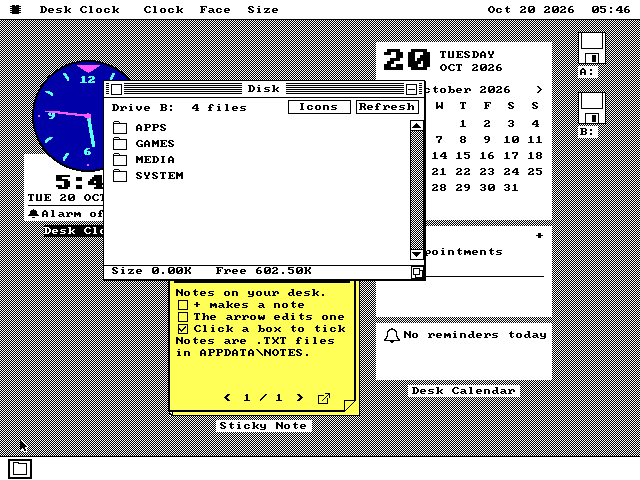
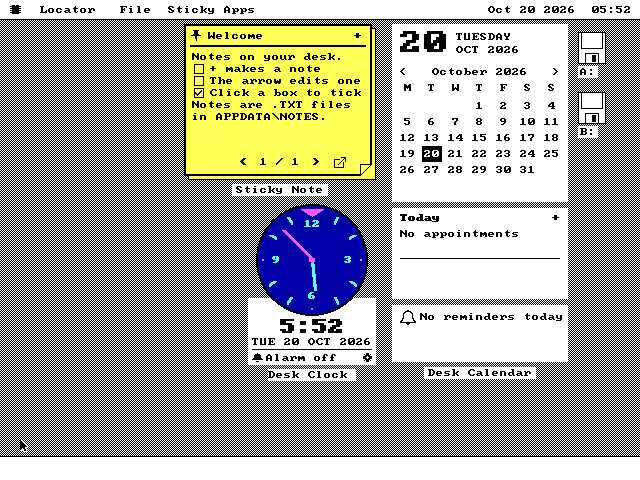
Sticky Apps are small programs that sit on the os8088 desktop itself, under every window, the way a calendar and a sticky note sit on a real desk. Three come on the system disk: Desk Calendar, Sticky Note and Desk Clock.
- a clock check with nothing to redraw, 4.77 MHz
- 0.4 ms
- memory, all three open
- 49KB
- all three on the disk
- 28KB
They run on VGA, EGA, Hercules and CGA screens, and lay themselves out to fit each one. A Sticky App you leave open comes back in the same place after a restart.
What a Sticky App is
A program that belongs to the desk rather than to a document.
os8088 is a graphical desktop for the original IBM PC, in the style of the first Macintosh. Every other program on it is a window. A window has a title bar, it comes to the front when you click it, and it has a tile in the dock along the bottom of the screen.
Some things work better as fixtures than as windows. A wall calendar or a note stuck to the monitor is not something you open and close. It is there, and you glance at it. The first Macintosh had small "desk accessories" for this, such as an alarm clock and a note pad, that opened in front of whatever you were doing. Today's systems call them widgets, and put them on the desktop itself.
os8088 calls them Sticky Apps. A Sticky App lives on the desktop, below every window. It has no title bar, frame or dock tile. Click it and it takes the keyboard and the menu bar, but it does not jump in front of the window you were working in. Move that window away and the calendar, the note and the clock are where you left them.
Each one has a small name tag under it. Point at the tag and it turns into a black handle with a close box at one end. Drag the tag to move the Sticky App, or click the close box to put it away.
See them running
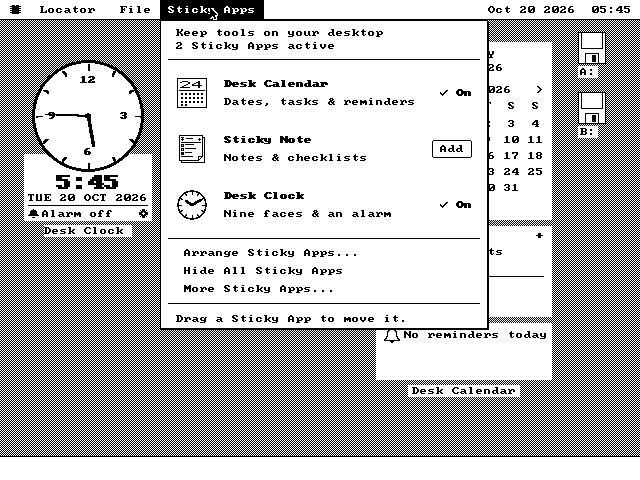
The menu that starts them, each of the three, and what Arrange does. All on VGA.
![A Note Pad window open over the sticky note. It holds four lines of plain text: Before Friday, then three lines starting with square brackets: [ ] Format 3 floppies, [ ] Back up disk B, and [x] Order printer ribbon. The bottom of the yellow note shows below the window, on page 2 of 2.](/img/stickyapps/sa-notepad.png)
The three apps
What each one does, and where it keeps what you put in it.
The month, the day and what is due
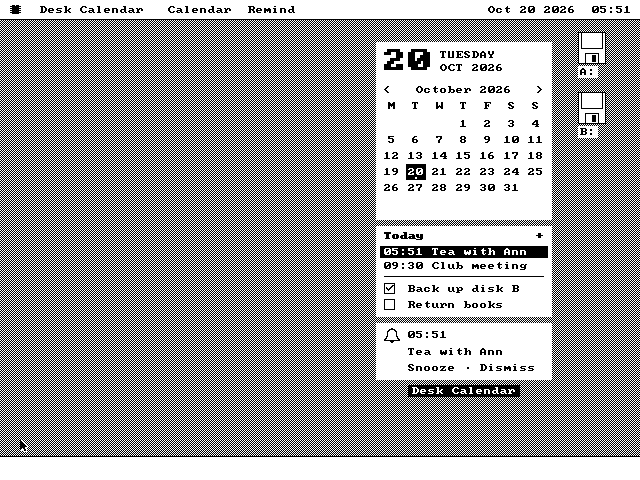
Three cards. The first is the month, starting on Monday, with today boxed. Click a day to see it, or the arrows to change month. The second card lists that day's appointments and your tasks. The third shows the next reminder.
Click + and type. A line that starts with a time, like 09:30 Club
meeting, is an appointment. Anything else is a task with a box to tick. It holds 48
appointments and 32 tasks.
When a reminder is due, the computer chirps, a short message appears, and the third card offers Snooze, for five minutes, or Dismiss. Nothing pops up to stop your work. The Remind menu sets how early it goes off: at the time, 5, 15 or 30 minutes early, or an hour early.
Notes that are just text files
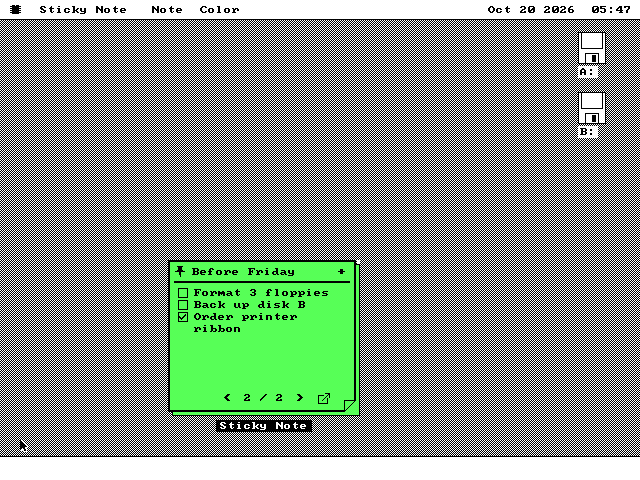
A sheet on the desk shows one note at a time. The arrows at the foot turn the pages.
Every note is an ordinary .TXT file in one folder on the system disk. The
arrow at the bottom right opens it in Note Pad, os8088's text editor, and the sheet reads
it again when Note Pad closes. The first line is the title. [ ] or
[x] at the start of a line is drawn as a box, and clicking the box ticks it in
the file.
Because they are plain text, a DOS PC can read the notes, and any .TXT you
copy into the folder becomes a note. + makes a new one. Delete asks you to press it
twice. On a colour screen the paper can be yellow, pink, green, blue or white.
Nine faces and an alarm
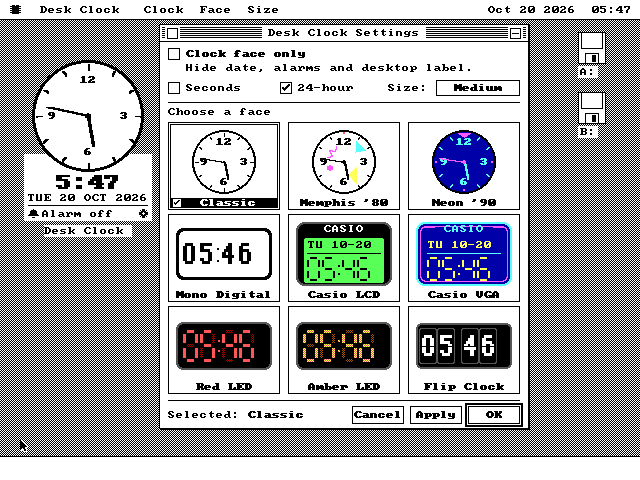
Round dials and digital displays, including an LCD watch, red and amber LEDs and a flip clock, each in three sizes. Seconds can be on or off, and the time can be 12- or 24-hour. Clock face only hides the date, the alarm line and the name tag.
There is one daily alarm, with Snooze and Dismiss. The settings open from the clock's own Clock menu, the small gear, a double-click on the face, or Enter.
Seconds are off by default for a reason. Measured on an emulated 4.77 MHz IBM PC, showing them costs 103 to 147 milliseconds every second, which is 10 to 15 percent of the machine. With them off, a check that finds nothing to redraw costs 0.4 milliseconds.
How it works
How a program stays under the windows, and why it costs an XT so little.
Always at the bottom of the pile
A Sticky App is an ordinary os8088 program in an ordinary file. What makes it sticky is one rule: the desktop keeps its window at the bottom of the stack of windows, under every application. Clicking it hands it the keyboard and the menu bar without moving it up. Press Esc to give them back.
The code for this layer is not part of the always-loaded system. It is a file of about 4KB on the system disk, read in when the first Sticky App opens and freed when the last one closes. It also carries one shared copy of the code all three apps use, which brought the memory for all three open at once from 54KB down to 49KB.
Back where you left it
While a Sticky App is open, the desktop keeps one line about it in its settings file, the
same list that remembers your desktop shortcuts. The app keeps its position and its settings
in a small file of its own in the system disk's SYSTEM\APPDATA folder.
At the next start the desktop opens it again in the same place. If the file has gone missing, you get one short message and an ordinary shortcut in its place. The start-up is never stopped.
A folder, not an installer
Sticky Apps live in a folder called STIKAPPS at the top of the disk the
machine started from. Each time you open the menu it looks there, and on any hard disk, and
lists what it finds. Copy a new one in and it is on the menu next time. It lists up to 64.
The name, the one-line description and the 32 by 32 picture come from the start of each program file. The menu reads one disk sector per app and never starts a program just to ask what it is. More Sticky Apps... opens The Wire, os8088's online library of programs.
Drawn once, out of sight
Each card is built in memory a strip at a time and copied to the screen in one step, so no pixel is drawn twice and nothing flickers while it is drawn. The clock keeps its dial in memory and redraws only the hands, the time and the date.
Each one picks a layout for the screen it is on: a tall one on VGA, a shorter one on Hercules and EGA, and a compact one on CGA, where the calendar's day and reminder cards share one space you page through. Desk Clock's round faces stay round on every screen, including CGA, whose pixels are taller than they are wide.
What they do not do
Where they stop, and why.
- No desk layer on the 128KB build of os8088. There, Desk Calendar and Desk Clock open as ordinary windows with title bars. Sticky Note is not on those disks.
- They live on the system disk only. A Sticky App belongs to the disk the machine started from, so the software disks do not carry any.
- They cannot be minimized or made full screen. Hide All Sticky Apps on the menu takes them all off the desk at once and Show All brings them back.
- Sticky Note does not change as you type. It shows what Note Pad last saved. If both change the same note, the last save wins. A note can be at most 16KB, and the shipped notes folder holds 30.
- The Desk Clock has one alarm. It goes off every day. There is no choice of days and no tune.
- A PC with no clock card forgets the date. The original IBM PC and XT have no battery-backed clock, so after a restart the calendar shows the wrong day until you set the date.
Run them
They are on every system disk, and the menu is on the menu bar.
-
Boot os8088 from any of its system disks.
-
Hold the mouse button down on Sticky Apps on the menu bar, and let go over Add beside the one you want. You can also open the
STIKAPPSfolder on disk A and double-click one. -
Drag it by its name tag to where you want it. Click it to use its menus.
-
To put one away, click the close box on its name tag, or choose it again on the Sticky Apps menu. Leave it open and it is there after the next restart.
The menu is on the menu bar when the desktop is in use. When a window or a Sticky App has the menu bar, click an empty part of the desktop first.